Help & User Guide
Everything on this page is searchable. Use the box above to filter.
Quick start
Register with email and password, or sign in with Google. Your location is stored as a grid square and deliberately fuzzed to roughly a 1 km radius.
Groups are permanent radio communities. Find one near you on the Groups map and join it, or ask an admin to invite you.
Open a live event and log your contact. You appear on the map as a dot, joined by a signal line to whoever heard you.
My Log keeps every check-in you have made, with stats, and lets you export ADIF or CSV.
A quick look around
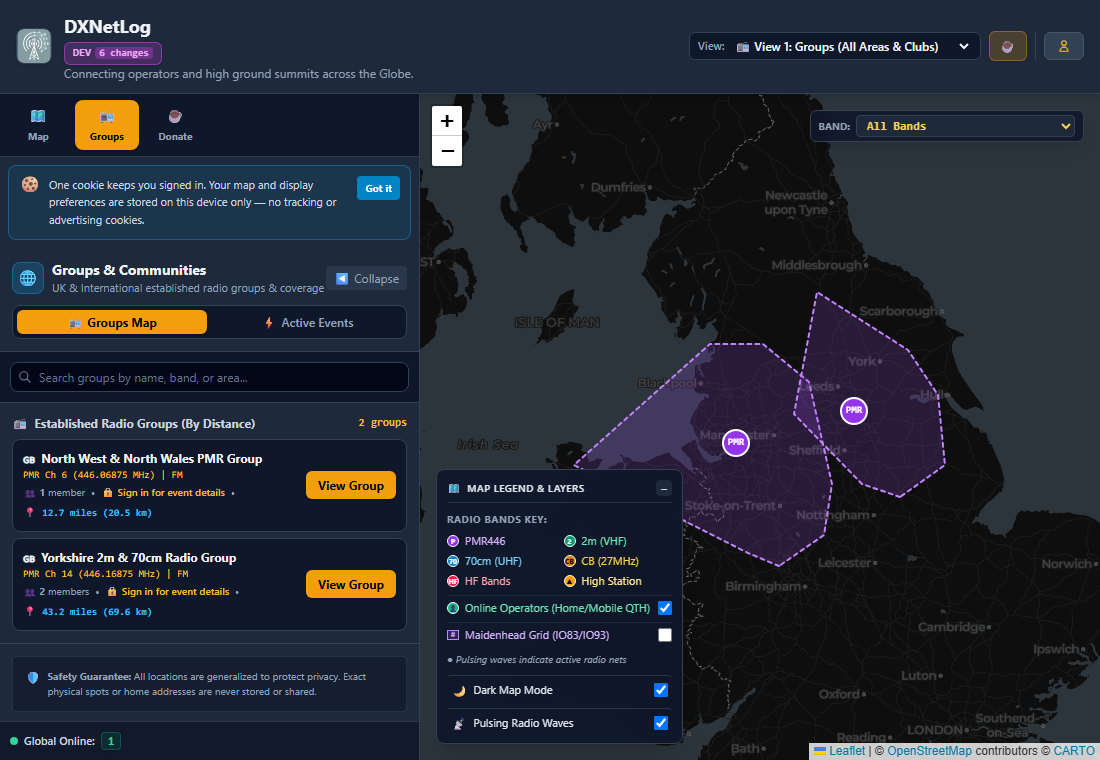
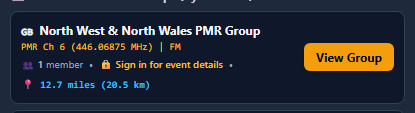
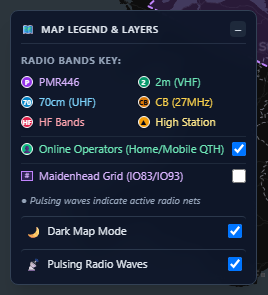
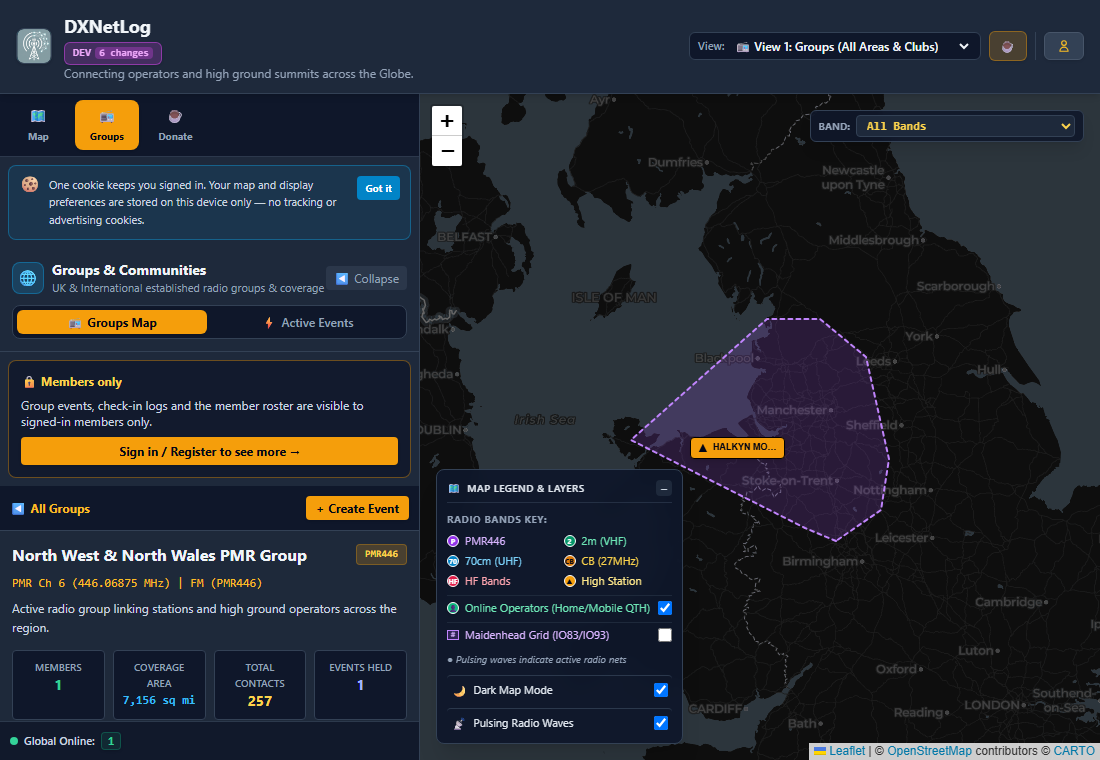
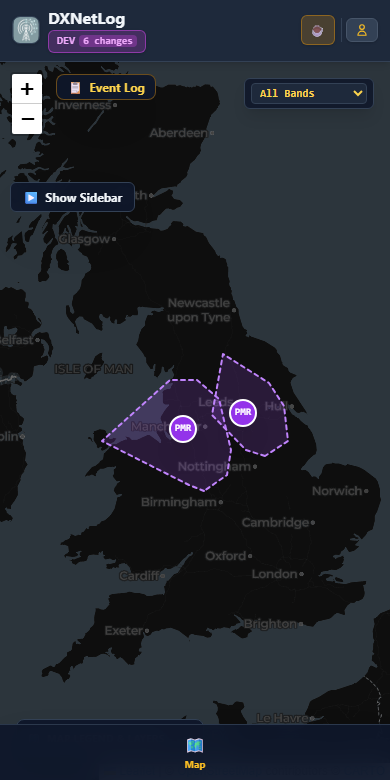
Real screenshots of the live site. Click any image to open it full size.
Your account
Every member gets a public reference such as UK0002: a two-letter country prefix plus a sequence number. It identifies your membership, never your person or your location, so it is safe to share. Your code is shown in the top-right user menu.
You can use a username and password, or Google. Accounts created with Google are asked to complete their country and handle on first visit. Password reset is only available for username/password accounts — Google accounts have no local password to reset.
Your home location is entered as a Maidenhead grid square, or derived from a town you pick. The platform stores an approximate point only. Nearby towns are used for distance sorting, never an exact address.
Choose whether you are shown by handle, callsign or first name. A last name is never displayed anywhere — not in logs, badges or map popups.
Three failed sign-in attempts locks the account temporarily. A password reset is offered automatically. Sessions last eight hours and extend every time you use the site.
Groups
A group is a permanent radio community, for example a regional PMR446 club or a 2m/70cm group. A group has members, a default frequency and mode, optional scheduled sessions, and a coverage area derived from where its members have actually operated.
- Open the Groups tab.
- Find a group in the list, or click its coverage polygon on the map.
- Open the group page and choose Join.
- Wait for an admin to approve if the group requires it.
Group admins can also invite you by email, or send a shareable invite link.
Members can hold roles: Admin (manage the group, its events and members), Controller (log contacts for the group's events), High Station (a recognised hilltop operator) and Member. Roles control what you can do inside that group only.
Signed-out visitors can browse groups and their coverage areas. Events, check-in logs and member rosters require an account.
Events and checking in
Net events are scheduled sessions run by a group, usually on a fixed frequency and mode. DX events are activations — typically a hilltop or special-location operation, often worked on HF or via a repeater.
- Open the Active Events view, or click a live event marker.
- You land in the focused event log, with the map on the right.
- Choose Check In to log yourself as present.
- The event must belong to a group you are a member of; otherwise you are asked to join first.
When logging a contact, Heard By records which station heard the person you are logging. This is what draws the signal line on the map. If it is left blank, the line falls back to Net Control, or draws nothing at all — the platform never guesses an origin.
Be accurate here: a wrong "Heard By" makes every contact appear to come from one hilltop, producing a false starburst pattern.
- Relay / Net Control — runs the net.
- High Ground — operating from a summit or hill.
- Contact — a normal station checking in.
Two or more groups can co-host one joint net, up to ten groups. Contacts logged on a joint net are shared between the host groups, but coverage polygons stay strictly per-group so a combined net never inflates a single group's footprint.
Controllers and admins can log contacts on behalf of operators. Use Tag Member to link a logged contact to a platform account, or Tag as Myself if you recognise the name as your own.
Understanding the map
- Groups — every group and its coverage area.
- Active Events — only events happening right now.
- Focused event log — one event, its contacts and signal lines.
Closed events disappear from the map entirely.
A polygon is the convex hull of where a group's members have actually operated. It is a record of real activity, not a claimed service area. Where there is not enough history to draw a hull, an approximate 25 km zone is shown instead, marked as generalised.
If several operators checked in from the same spot, you see one dot rather than a pile of overlapping ones. Hover it and the names are listed; click it for the full roster, with each operator's check-in number, distance and signal report.
A line joins a contact to the station that heard them. Line thickness does not encode signal strength. Hover a line is intentionally not used — details live on the dot instead, so lines never block clicks.
- Relay / High Ground / Contact — show or hide each station type.
- Show Contact Names — permanent name labels beside dots. In DX events this becomes Show Operator Names and is on by default.
- High Ground Links — the relay backbone between summits.
- Contact Lines — individual signal paths.
- Maidenhead Grid — grid square overlay.
- Dark / Light map mode — line colours adapt automatically.
Every coordinate is generalised to roughly a 1 km radius before it is stored. You can opt out of appearing on the global map at all. Beacons carry the same treatment.
DX activations
A DX event is an activation of a location — a summit, a rare square, a coast or a special event station. It is separated from net events so two different kinds of activity never muddy each other's statistics.
- Open your group and choose Create Event.
- Set the event type to DX.
- Enter the operating location, band and mode.
- Open the event when you are on air — it then appears on the Active Events map.
A beacon advertises a summit activation to nearby operators: who is on the hill, which band they are monitoring, and an approximate grid reference. Beacons appear as ▲ markers and are generalised the same way as every other location.
DX events can be exported as ADIF for import into any logging program, or as CSV for a spreadsheet. Export is available to event admins.
Notifications
Notifications are delivered by your phone's push service, not by the website being open. Once enabled, they arrive with the browser closed, the phone in your pocket, or the screen locked.
- Open your account menu → Edit My Profile.
- Choose the Alerts tab.
- Tick Enable notifications on this device and allow the permission prompt.
- Press Send me a test notification to confirm it works.
Do this on each device you want alerts on — a phone and a laptop are separate.
Apple only delivers notifications to apps installed on the Home Screen. In Safari, tap Share → Add to Home Screen, then open DXNetHub from the new icon and enable notifications there. Without this, notifications will not arrive on iOS — that is Apple's rule, not a setting you can change.
- An event is about to start — a net or DX session you can see is going live.
- You are tagged as a contact — someone logged you on a net or DX session.
- You are invited to an event — including who invited you and the channel.
Each can be switched off individually. There is also Only groups I'm a member of, so you are not alerted about groups you do not follow.
- Check notifications are still allowed for the site in your browser or phone settings.
- Clearing your browser's site data removes the subscription — turn notifications off and back on.
- On iPhone, confirm DXNetHub is still on the Home Screen.
- Use Send me a test notification to check without waiting for a real event.
Turn off this device stops alerts to the phone or computer you are using, without affecting your other devices. Unticking the main switch turns your alerts off everywhere.
My Log (personal logger)
My Log is your personal record of every contact you have logged or been tagged in, across every group and event. It works as an independent logbook: you can add contacts that were never part of a platform event.
Choose Add Contact in My Log and enter callsign, date, band, mode, signal report and any notes. Personal contacts are private to your account and are never shown to other members.
Your log summarises total contacts, unique callsigns, bands worked and recent activity. Achievements are calculated across your whole log, not just platform events.
Export your whole log as ADIF (for logging software such as Log4OM or N1MM) or CSV (for spreadsheets). Exports contain only your own contacts.
Group Administration
For group admins and controllers. Open it from your user menu → Group Administration.
If you administer several groups, the dashboard header has a Managing Group selector. Everything you change applies to whichever group is selected there.
The group's core identity: name, description, default band, predefined channel and mode, Facebook/website links, and schedule recurrence.
This tab also holds the public visibility controls — whether coordinates, grid squares, notes and distances are shown to non-members. Turning these off hides that data from the public API, not just the screen.
Who belongs to the group and what they may do. Prominent roles:
- Admin — full control of the group, its events and its members.
- Controller — can log and edit contacts for the group's events.
- High Station — a recognised hilltop operator for the group.
- Member — can attend events and check in.
You can also invite operators by email from here, and remove members who have left.
Create, edit, open and close the group's events. Opening an event publishes it to the Active Events map; closing it removes it entirely, which is why closed events never linger in view.
Joint nets are arranged here too — invite another group as co-host (up to ten).
In Events & Schedule, create the event as normal, then set a recurrence — weekly, fortnightly or monthly, chosen by day of week and time. The group then shows a recurring slot instead of you creating the same event by hand each week.
The scheduled slot is a template: each week you still open the actual event when the net begins, so the live map only ever shows sessions that are genuinely running.
Use 1-Tap Open Today's Event in the Groups menu to open the next scheduled session without filling in the form again.
Trends for the group: members over time, events held, total contacts logged, and how busy each event was. Useful for showing how much activity a group genuinely generates.
These are two different views of the same group, and they show different amounts on purpose:
- Groups view (everyone) — the group's name, coverage area, frequency and public description. No rosters, no event history.
- Admin dashboard (admins/controllers) — members and roles, every event including closed and cancelled ones, settings, and activity trends.
So a closed event disappears from the public map but remains in your dashboard's Events & Schedule list, marked Closed. That is expected, and is how you review a net afterwards.
While viewing one of the group's events, open Event Actions in the header. The Export options there give you ADIF (for logging software) and CSV (for spreadsheets). Only the group's admins and controllers see them.
Closing removes it from the live map. Contacts are kept and remain in the group's history and in members' personal logs, but nobody can check in afterwards.
Privacy and safety
Every location on this platform is deliberately approximate. Exact homes, streets and addresses are never stored, never displayed and never exposed through the API. Distances are computed from those approximate points.
A generalised grid square, an optional town name, your handle and callsign, and your contact log. Nothing more precise than that.
One cookie keeps you signed in. Display preferences — map labels, theme, collapsed panels — are stored on your device only and never sent to the server. There are no tracking or advertising cookies.
Donation records are pseudonymous. The donor's name and email are discarded and never stored; attribution happens only through a membership code quoted in your own message.
High ground — help us build the database
Sites, access notes and coverage reality exist in people's heads, not in any database. Every hilltop logged makes the map more useful for the next operator — especially someone new to the area.
- Site name — the name people actually use, including local variants.
- Grid square — six characters ideally (e.g. IO83KI). Four is fine if that's what you have.
- Bands known to work — which bands you have actually made contacts on from there, not which ought to work.
- Access — parking, footpath, landowner permission, gates, anything that would stop someone arriving.
- Hazards — wind, exposure, livestock, poor phone signal, steep ground.
- Anything seasonal — the road is open in summer but not winter, a site is busy in lambing season.
- Add a record — open High Ground Spots Database from your user menu. You can add a site directly: name, grid square, bands, access and notes.
- Log a contact from the summit — during any event, mark the check-in as High Ground and enter the site name. That records real, proven activity from the site.
The two complement each other: the database holds what is known about a site, while logged contacts prove it works in practice and feed the group's coverage area.
One accurate, well-described site is worth ten vague entries. If you are unsure of a grid reference, say so rather than guessing — a wrong location sends people to the wrong hill.
All coordinates are generalised to roughly a 1 km radius when stored, which protects the exact spot without costing usefulness for net planning.
Support, bug reports & donations
Reports are genuinely welcome — most of what has been fixed on this platform came from members saying something looked wrong.
What makes a report fixable:
- What you did — which group or event, which tab.
- What you expected and what actually happened.
- The page address — copy it from the browser bar, including any ?net=…&event=… part.
- A screenshot if it is visual.
- Your browser and device, especially if it works on desktop but not on a phone.
Where the error console is available, the Copy Report button produces a ready-to-paste summary including the page, browser and recent activity. Paste it into an email or forum message along with a sentence about what you were doing.
Please avoid including personal details of other operators in a report — call signs and membership codes are fine, home addresses are not.
This platform is run by one person, not a company. There is no advertising, no data selling and no venture funding — which is exactly why it stays private and free of tracking.
Donations cover concrete, recurring costs:
- Server hosting — the VPS that runs the live map and database.
- Domain renewals — several domains all resolve to this one service.
- TLS certificates and email delivery — the infrastructure that keeps sign-in and notifications working.
- Development time — fixes and features are built in evenings and weekends.
Donations are recorded pseudonymously: your name and email are discarded, and attribution happens only if you quote your own membership code. If the site has been useful to you, the Support button in the header is the most direct way to keep it running.
What's new
Plain-language summaries of what has changed. Fixes are described by what you will notice, not by internal detail.
- Group coverage now shows the right area. Opening a group displays only that group's coverage, rather than every group's.
- Event maps show their contacts again. An error stopped contact dots and signal lines drawing on some events.
- Operators at the same spot share one dot. Hover or click it to see everyone who checked in from there, with their numbers and distances.
- Optional name labels. A legend toggle shows contact names beside dots — off by default for nets, on for DX.
- Hovering a line no longer shows a tooltip. With hundreds of lines it blocked the dots and showed confusing pairings. Details live on the dots instead.
- Thinner signal lines so a busy map stays readable.
- Google sign-in accounts no longer offer a password reset, since they have no password here.
- Member list shows the sign-in type — username and password, or Google.
- Your membership number now appears in the top-right menu instead of your role.
- New help and user guide (this page), with search.
- Tidier header — Export moved into Event Actions, a duplicate Group Administration entry removed, and header text made larger.
- Mobile station type — mark a check-in as mobile or portable, distinct from a hilltop.
- Clearer status wording — "On The Radio" is now "Let People Know You're DXing".
- Membership codes — every member gets a shareable reference such as UK0001.
- Choose your country at registration; the map opens on it.
- Google sign-ups are asked to finish their country and handle.
- Joint nets can be co-hosted by up to ten groups.
- Contact lines are visible in light mode again, and keep their colour after hovering.
- Navigation now updates correctly after signing in.
- Anonymous donations are recorded without storing any personal details.
- Security hardening — automatic blocking of abusive traffic, and improved audit logging.
Frequently asked questions
Why can a logged contact have no line on the map?
Because no "Heard By" was recorded for it. The platform will not invent an origin — a line only appears when there is a real station that heard the contact.
Why do several names appear on one dot?
Those operators checked in from the same place. One dot is clearer than several identical overlapping ones; the full list is on click.
Why can I see a group but not its events?
Group existence and coverage are public. Events, check-ins and member rosters require you to be signed in, and some groups require you to be a member.
I signed in with Google — how do I change my password?
You do not have one. Your Google account handles authentication, so there is no password on this platform to reset.
Can I hide myself from the map?
Yes. Turn off "show on global map" in your account settings. You will still be counted in statistics, but your location will not be plotted.
I enabled notifications but nothing arrives
On iPhone, notifications only work once DXNetHub has been added to your Home Screen. On any device, try Send me a test notification from the Alerts tab — if that does not arrive, turn notifications off and on again to refresh the device registration.
Why did my session end?
Sessions last eight hours and extend every time you use the site, so a full afternoon of logging will not sign you out. Only an idle session is ended — sign in again and carry on.
Where can I see what has recently changed?
The What's new section above lists recent releases in plain language. The dev instance also shows a changelog badge in its header.
My event shows a different channel in the list than when I open it
This was a display bug, fixed in v2026.2. The events list matched the channel name loosely, so "PMR Ch 14" was shortened to "PMR Ch 1". The event itself always held the correct channel. If you still see a mismatch, report the event name.
How do I set up a recurring event?
Group admins: open Group Administration → Events & Schedule, create the event, and set its recurrence (weekly, fortnightly or monthly). Then use 1-Tap Open Today's Event when the net starts. See Group Administration.
Something looks wrong — how do I report it?
Use the Copy Report button in the error console, which produces a ready-to-paste bug report, or contact an administrator. Include the event or group you were viewing.